Your device
This page explains what you can see and do on the unit itself.
The screen
Section titled “The screen”Most of the time the screen shows the normal status view:
- Top line: the unit’s name. After you’ve confirmed your email, a small check mark appears in the top right corner. Before that, !! in that corner means the unit couldn’t reach us the last time it tried.
- Middle: POWER ON when the outlet has power, POWER OUT when it doesn’t.
- The line below: signal bars, the cellular network’s name, and OK if the
last check-in got through or !! if it didn’t. Two other messages can take
this line’s place:
- Confirm email: you haven’t confirmed your address yet. See Confirm your email.
- EXPIRED - check email: the unit’s service has ended. See Renewing your service.
- Bottom line: the backup power level. CHG next to it means the unit has mains power and is charging its backup power.
About 10 minutes after the unit starts, the screen turns down to its lowest brightness to protect it from wear. It’s still on, just dimmer.
Other screens you may see:
-
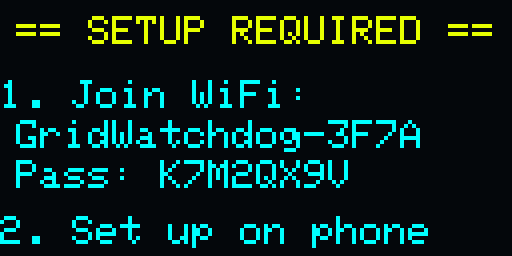
SETUP REQUIRED, with a WiFi name and password: the unit isn’t set up yet. See Set up your device.
-
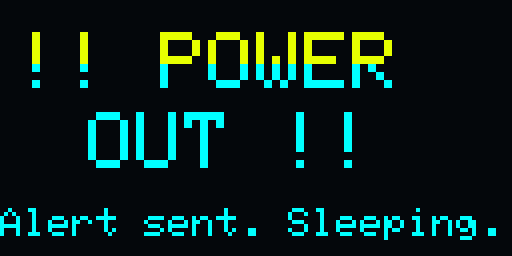
!! POWER OUT !! in large letters: the unit has seen the power go out and is running on its backup power. This screen tells you what the unit saw, not whether an email reached you. Your inbox is where you find out.
-
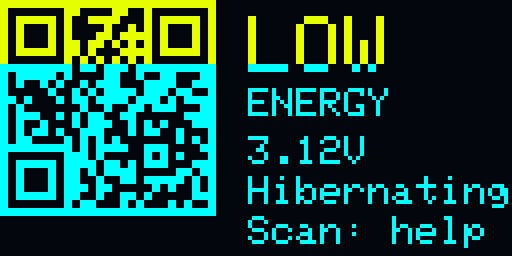
LOW ENERGY: its backup power ran low during an outage, and the unit is sleeping until the power comes back. See During an outage.
-
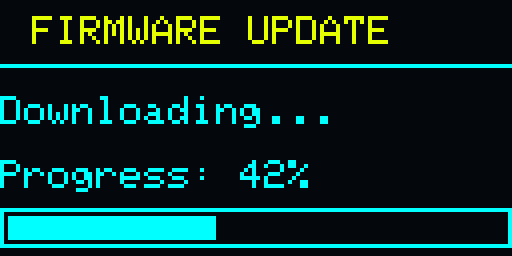
FIRMWARE UPDATE: the unit is installing an update. See Firmware updates.
-
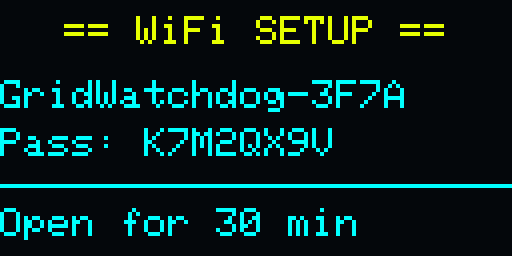
WiFi SETUP, with a WiFi name and password: you pressed the button, and the setup WiFi is on.
-
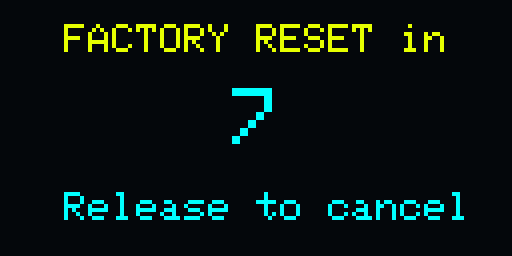
FACTORY RESET in, with a countdown: you’re holding the button. Let go to cancel.
The button
Section titled “The button”Use the button marked BOOT while the unit is plugged in and has power. The button beside it, marked RST, is described below.
- A short press turns the setup WiFi back on for 30 minutes. The screen shows the WiFi name and password. Join it on your phone and go to 192.168.4.1 to see the unit’s status page, where you can also send a test alert. The WiFi stays on while your phone is connected, and turns itself off 15 minutes after you disconnect.
- Holding it for 10 seconds factory resets the unit. After a few seconds the screen starts a countdown. Let go before it ends to cancel. A reset erases the unit’s name and email address, and you’ll need to set it up again. See Factory reset.
RST restarts the unit straight away. It doesn’t erase anything or change its settings, and it doesn’t factory reset the unit. You shouldn’t normally need it.
During an outage
Section titled “During an outage”When the outlet loses power, the unit switches to its built-in backup power and reports the outage to us over its own cellular connection. Its backup power is small: it keeps the unit going for a few minutes, not hours. See How fast alerts arrive.
While it’s on backup power, its setup WiFi stays off, to save power.
When its backup power runs low, the unit typically has time to tell us, and we send you a Backup Power Low email. The unit then goes quiet and stops reporting until the power comes back. If we stop hearing from it, we send you a Device Went Dark email. When the power comes back, the unit wakes, recharges, and we email you that power is restored.
Firmware updates
Section titled “Firmware updates”We send updates to your unit over its cellular connection. You don’t need to do anything.
- An update installs only while the unit has mains power. If the power goes out while it’s downloading, the unit stops the update and reports the outage.
- While it’s updating, the screen shows FIRMWARE UPDATE and its progress. The unit then restarts by itself.
- If an update can’t be checked or doesn’t download properly, the unit keeps running its current version.